Inside a Calistack workout
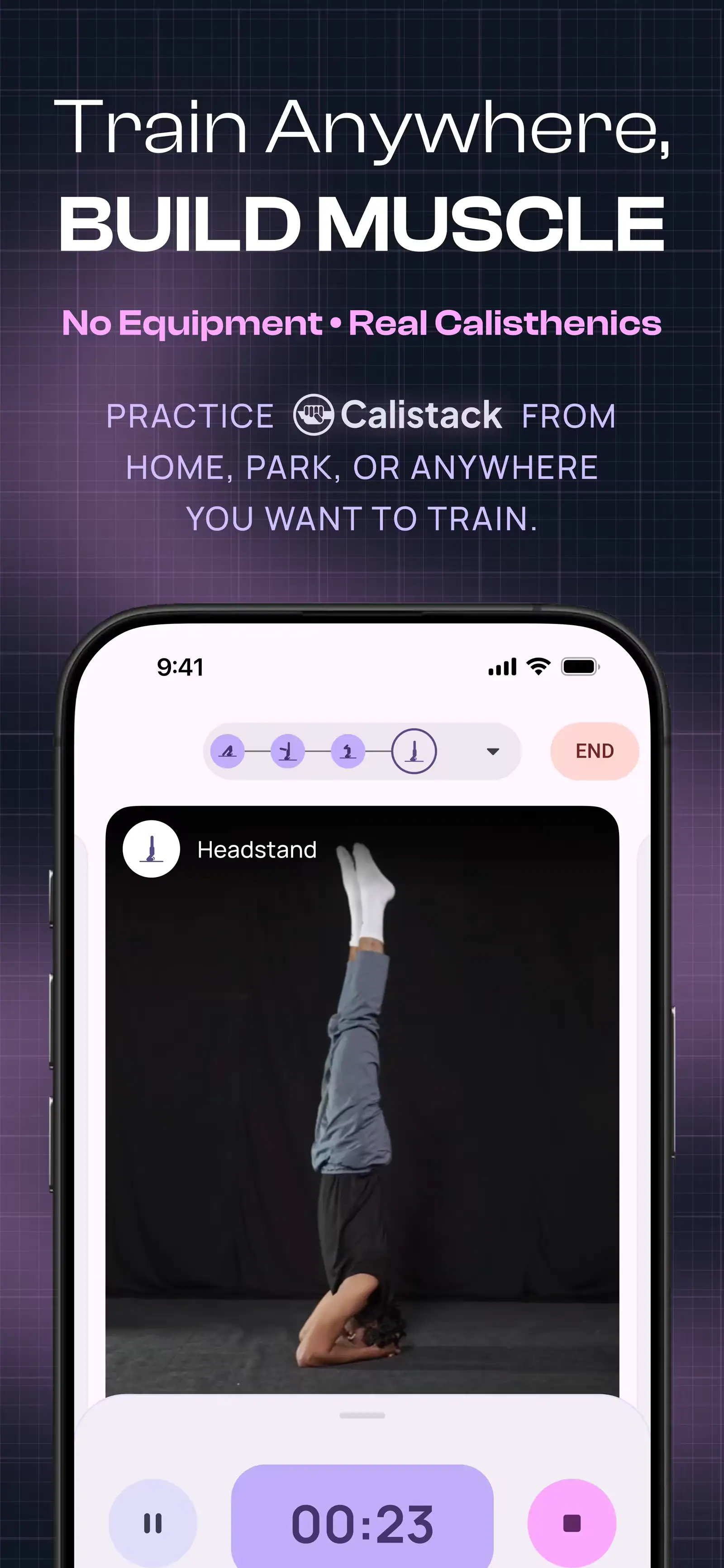
A Calistack session starts with a warm-up, then a setup screen where you reorder workouts and set reps or hold times. The player shows steps, a demonstration video and good or bad form cues. A 60-second rest timer with ten-second adjustments runs between sets, and the next skill to unlock stays visible.
By Calistack Team · Updated · Product details verified against the Calistack app. General information, not medical advice.
Warm-up first
Before the first set, the app shows a warm-up card and a warm-up guide video. The screen says the session is for preparing your body, reducing injury risk and improving performance, and the workout screen keeps a short stop-if-it-hurts reminder.
You can open the video full screen or continue straight to the session setup. There is no separate warm-up tracking; it is a guided step before training.
Set up the session
The setup screen lists the workouts in the order they will run. You can drag them into a different order and adjust the sets for each one with a bottom sheet.
Sets and reps are editable: rep-based exercises use rep counts, hold-based exercises use hold seconds. Add and remove sets as needed, then continue into the player. If you started from a skill page, the app also pre-loads that skill's recommended supporting exercises.
Three pages per exercise
Each exercise card has three pages: steps, video and form cues. Swipe between them during the set. The steps page is the how-to sequence; the video page is the demonstration; the cues page splits good cues from common mistakes.
A stopwatch sits at the bottom of the screen with start, pause and stop. End ends the session early if you need to, and the app still records the work you completed.
Logging reps or holds
When a set ends, the app asks for the number you completed: reps for a rep node or seconds for a hold node. The number is written to workout history and immediately checked against the node's unlock and mastery rules.
The app also tracks a per-set target in the setup screen and shows the current set within the workout, so you know where you are in the sequence.
The rest timer
A 60-second countdown starts between sets and between workouts. The screen shows a large time display, a vertical progress fill and buttons to subtract or add ten seconds.
You can skip the rest at any point. The skip button names the next set or workout so you know exactly what you are walking into.
Next skill to unlock
During rest, the app keeps a next-skill panel on screen. It lists the skills that your current work is moving toward, with the rep or hold requirement shown next to each one.
This is the part of the player that makes the progression visible mid-session rather than only after it.
Ending and reviewing
Ending a session early is allowed. The summary tells you which sets were completed and what was recorded, and the same summary appears after a full session.
The summary, history and mastery screens are covered in the next page, so this page stays focused on the player itself.
What the player does not do
It does not watch your form through a camera or claim to analyse technique. The guidance is written cues plus the demonstration video, and the app leaves the judgement about your setup to you.
The rest timer is a fixed 60-second default with manual adjustment, not an adaptive coach. If a different rest period suits you, adjust it during the session.
Inside a Calistack workout: common questions
Can I change the order of workouts in a session?
Yes. The setup screen is a reorderable list, so you can change the sequence before you start.
How long is the Calistack rest timer?
The default rest is 60 seconds. You can subtract or add ten seconds, or skip the rest and go straight to the next set or workout.
What happens if I end a workout early?
The session ends and the app records the sets you completed. The summary is marked as an early end rather than silently treating the session as complete.
Does the player show video for every exercise?
Each workout row has a tutorial video and a short video field, and the detail page exposes both. Coverage per node should be checked in the app and on the exercise pages rather than assumed for every movement.
Can I log a set with zero reps?
The set-count sheet allows zero when the screen permits it, which is useful when you need to record an attempt that did not produce a clean rep.
Keep exploring
Try it in the app
Calistack is free to download on iOS and Android. The app is where the tree, player and progress live; this page explains how they work.

